


Power Apps People Picker

Problem
Very often, when your form is connected to a SharePoint list with a Person column, the Combo Box displays only a limited set of users.

Why this happens:
- The
Choices()limitation: If theItemsproperty of your Combo Box is set to something likeChoices('YourList'.'YourPersonColumn'), Power Apps only displays users who already exist as entries in that SharePoint column across existing items, rather than pulling from your entire organization's directory. - Column restrictions: If the column allows both people and groups, or restricts selection to a specific SharePoint/AD group, native behavior or cached metadata can further restrict or alter what renders in the picker.
Basic People Picker using Office 365 Users

Using the Office 365 Users connection, you can search across all Active Directory users.
Data source
In the Items property of your Combo Box, set the following expression:
Sort(
    Office365Users.SearchUserV2({
        searchTerm: Self.SearchText,
        top: 20,
        isSearchTermRequired: false
    }).value,
    DisplayName
)
It returns a set of user properties including Id, DisplayName, Mail, UserPrincipalName and JobTitle.
Default selection
The Office 365 Users search data structure is different from the SharePoint Person column. To set a default value, you must define the DefaultSelectedItems property of your Combo Box.
For a single person:

With(
    {selectedUser: Office365Users.UserProfileV2(selectedItem.SinglePersonColumn.Email)},
    {
        DisplayName: selectedUser.displayName,
        Mail: selectedUser.mail,
        Id: selectedUser.id,
        UserPrincipalName: selectedUser.userPrincipalName
    }
)
For multiple persons:

ForAll(
    selectedItem.MultiplePersonsColumn As spUser,
    With(
        {selectedUser: Office365Users.UserProfileV2(spUser.Email)},
        {
            DisplayName: selectedUser.displayName,
            Mail: selectedUser.mail,
            Id: selectedUser.id,
            UserPrincipalName: selectedUser.userPrincipalName
        }
    )
)ThisItem instead of the selectedItem variable.
Save data
Because the data structures differ, you must also pass the correct format into SharePoint. To save using Patch, use the following format:

Patch(
    SPList,
    UpdatingItemOrDefaults,
    {
        SinglePersonColumn: {
            '@odata.type': "#Microsoft.Azure.Connectors.SharePoint.SPListExpandedUser",
            Claims: $"i:0#.f|membership|{ComboBox_SinglePerson.Selected.UserPrincipalName}",
            DisplayName: ComboBox_SinglePerson.Selected.DisplayName,
            Email: ComboBox_SinglePerson.Selected.Mail,
            JobTitle: "",
            Department: "",
            Picture: ""
        },
        MultiplePersonsColumn: ForAll(
            ComboBox_MultiplePersons.SelectedItems As o365User,
            {
                '@odata.type': "#Microsoft.Azure.Connectors.SharePoint.SPListExpandedUser",
                Claims: $"i:0#.f|membership|{o365User.UserPrincipalName}",
                DisplayName: o365User.DisplayName,
                Email: o365User.Mail,
                JobTitle: "",
                Department: "",
                Picture: ""
            }
        )
    }
)
If you use a Form control, update the Update property of the parent data card of your Combo Box instead.
Single person column, change from:
ComboBox_SinglePerson.SelectedTo:
{
    '@odata.type': "#Microsoft.Azure.Connectors.SharePoint.SPListExpandedUser",
    Claims: $"i:0#.f|membership|{ComboBox_SinglePerson.Selected.UserPrincipalName}",
    DisplayName: ComboBox_SinglePerson.Selected.DisplayName,
    Email: ComboBox_SinglePerson.Selected.Mail,
    JobTitle: "",
    Department: "",
    Picture: ""
}
Multiple persons column, change from:
ComboBox_MultiplePersons.SelectedItemsTo:
ForAll(
    ComboBox_MultiplePersons.SelectedItems As o365User,
    {
        '@odata.type': "#Microsoft.Azure.Connectors.SharePoint.SPListExpandedUser",
        Claims: $"i:0#.f|membership|{o365User.UserPrincipalName}",
        DisplayName: o365User.DisplayName,
        Email: o365User.Mail,
        JobTitle: "",
        Department: "",
        Picture: ""
    }
)
Advanced People Picker using Office 365 Users
The classic Combo Box supports different layout options: Single, Double and Person.

With the Double layout, you can show an additional user property below the display name, such as email, job title, department or anything else. You can access this setting in the Combo Box Fields property.
The Person layout also shows a picture next to the primary and secondary text, but it has a limitation when used with Office 365 Users.
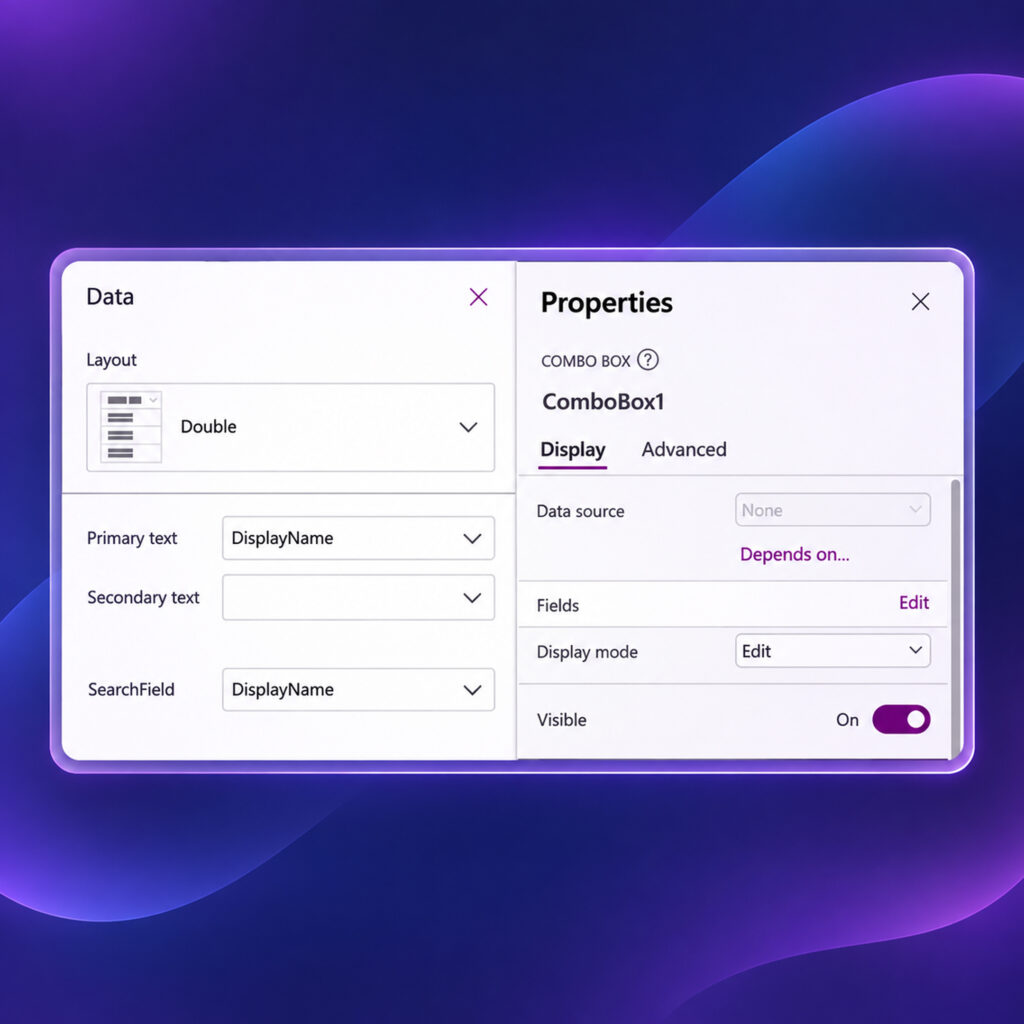
You can retrieve a user photo with this function:
Office365Users.UserPhotoV2()Using it, you can extend your data source expression to add a Picture property with the AddColumns function:
AddColumns(
    Sort(
        Office365Users.SearchUserV2({
            searchTerm: Self.SearchText,
            top: 20,
            isSearchTermRequired: false
        }).value,
        DisplayName
    ),
    Picture, Office365Users.UserPhotoV2(Id)
)
Unfortunately, this will not work because the Combo Box does not support the data format returned by UserPhotoV2. It can be passed as a Base64 string instead:
Substitute(
    JSON(
        If(
            Office365Users.UserPhotoMetadata(Id).HasPhoto,
            Office365Users.UserPhotoV2(Id),
            SampleImage
        ),
        JSONFormat.IncludeBinaryData
    ),
    """",
    ""
)JSON function inside the Items property causes an error.

Solution: use a collection
The only workaround is to pre-load all users into a collection in the App.OnStart event:
ClearCollect(
    colUsers,
    AddColumns(
        Office365Users.SearchUserV2({
            searchTerm: "",
            top: 5000,
            isSearchTermRequired: false
        }).value,
        Picture,
        Substitute(
            JSON(
                If(
                    Office365Users.UserPhotoMetadata(Id).HasPhoto,
                    Office365Users.UserPhotoV2(Id),
                    SampleImage
                ),
                JSONFormat.IncludeBinaryData
            ),
            """",
            ""
        )
    )
)
Then set colUsers as the Items property of your Combo Box.

- The search function returns a maximum of 1,000 users per request.
- The collection can't be refreshed while the user types, because the Combo Box has no change event for its search text.
If your organization has more users, retrieve them another way, for example with Power Automate.


